
Apple, iPhone, iPad & Mac
Check iPhone IMEI: Genuine Status, Activation, and Warranty
A practical IMEI check workflow for iPhone — activation status, warranty coverage, and what one lookup cannot prove.
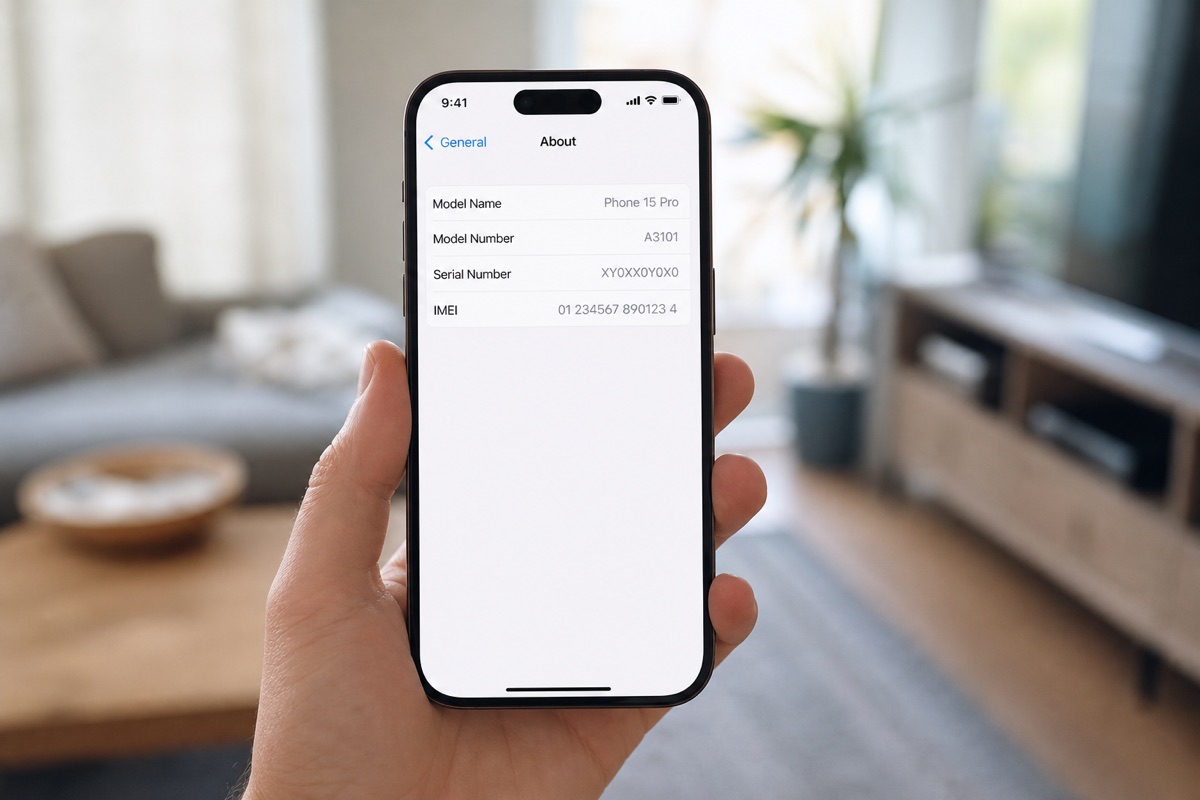
IMEI check, lookup, and warranty check go together
Whether you search for an IMEI check or an iPhone warranty check, the workflow is the same: collect the correct 15-digit IMEI and serial, match them to the box, then review model, activation, and coverage. For many devices, use bulk Excel checks.
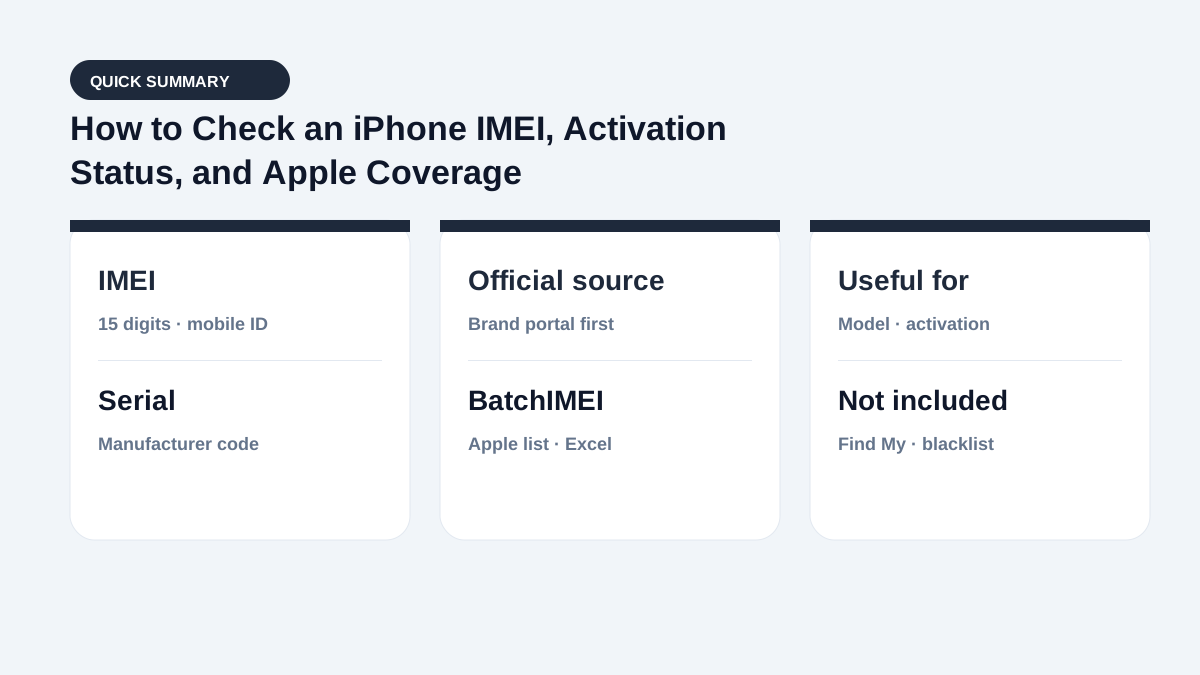
Step 1: Find the IMEI and serial number on iPhone
Go to Settings → General → About, or enter *#06# in the Phone app to display the IMEI. Record the serial number and both IMEI 1 and IMEI 2 when shown. Compare them with the original box and invoice. An unexplained mismatch is a reason to pause and question the seller.
Step 2: Check iPhone warranty and activation
For one device, open Apple's official Check Coverage service. For a store inventory list, upload the Apple IMEIs or serial numbers in an Excel file to retrieve the model, activation status and date, and remaining Apple coverage for each row.
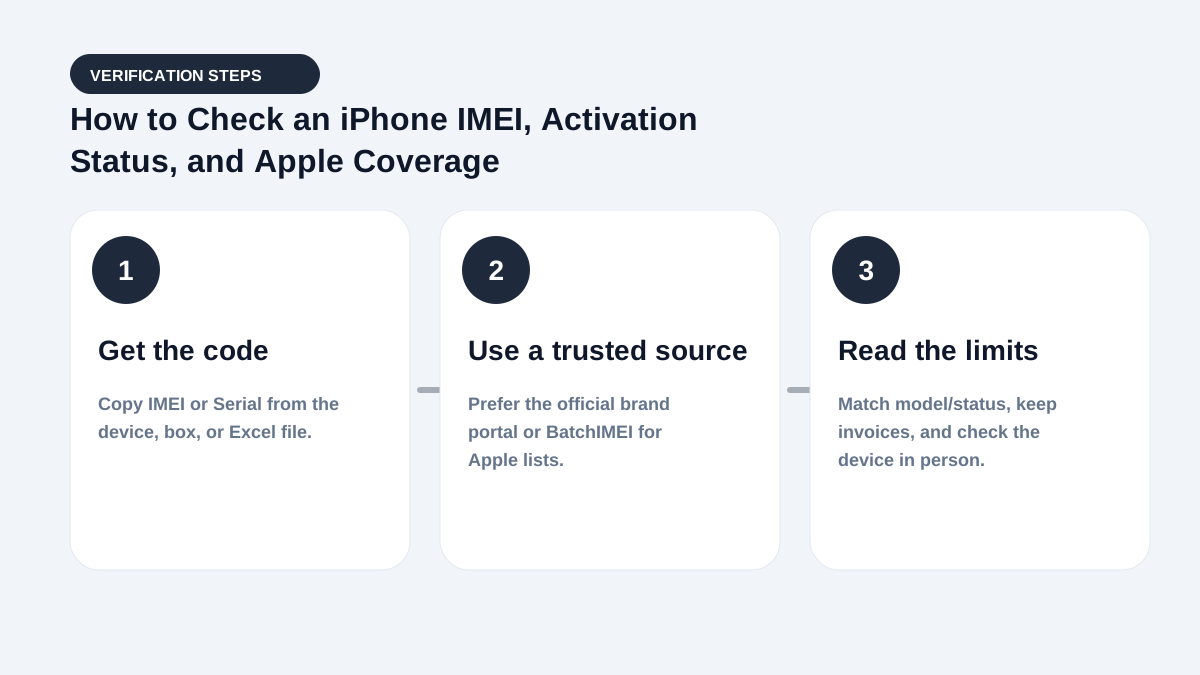
Step 3: Interpret and cross-check the result
Confirm that the returned iPhone model matches the device, then review Activated or Not Activated status, the activation date, and remaining Apple coverage. A Not Activated result does not prove that the box is factory sealed or that the product has never been handled. An Activated result does not always mean the phone is used, because a reseller may activate it during fulfillment.
Record when you performed the check and compare the result with the seller's description and purchase documents.
Does an IMEI prove that an iPhone is genuine?
No. An IMEI or serial number can be copied, while an iPhone may have a replacement enclosure or components. For a used iPhone, inspect Find My and Activation Lock directly on the device, review Parts and Service History where available, test battery health, Face ID, display, cameras, and speakers, and make sure the seller can sign out of the Apple Account. For model, capacity, and origin questions, see how to look up iPhone details by IMEI.
Frequently asked questions
Can an IMEI coverage check detect a hidden iCloud or Find My lock?
No. Apple coverage data is separate from Activation Lock and Find My. Ask the seller to sign out of the Apple Account and turn off Find My on the iPhone.
What if the IMEI on the box differs from the iPhone?
Stop and investigate. The box may belong to another phone, or the device or label may have been altered.
Can I check multiple iPhones at once?
Yes. BatchIMEI accepts an Excel or CSV file containing up to 1,000 Apple IMEIs or serial numbers per batch.
Is an IMEI check the same as an iPhone warranty check?
Not exactly. An IMEI check collects and matches identifiers; a warranty check reads remaining coverage. You usually do both before buying.
References
- Apple Support — Find the serial number, EID, or IMEI — Official instructions for iPhone and iPad
- Apple — Check Your Service and Support Coverage — Apple's official serial-number coverage checker
Stop checking Apple identifiers one at a time
BatchIMEI accepts an Excel/CSV file of Apple IMEIs or serial numbers, processes up to 1,000 identifiers per batch, and exports activation and warranty results. The current price is 500 VND per successful check.