
Bulk Checks for Businesses
How to Bulk-Check Apple IMEIs and Serials with Excel
Upload Excel → run a batch → download one result file for stores, wholesalers, buyback teams, and refurbishers — without typing each code into Check Coverage.
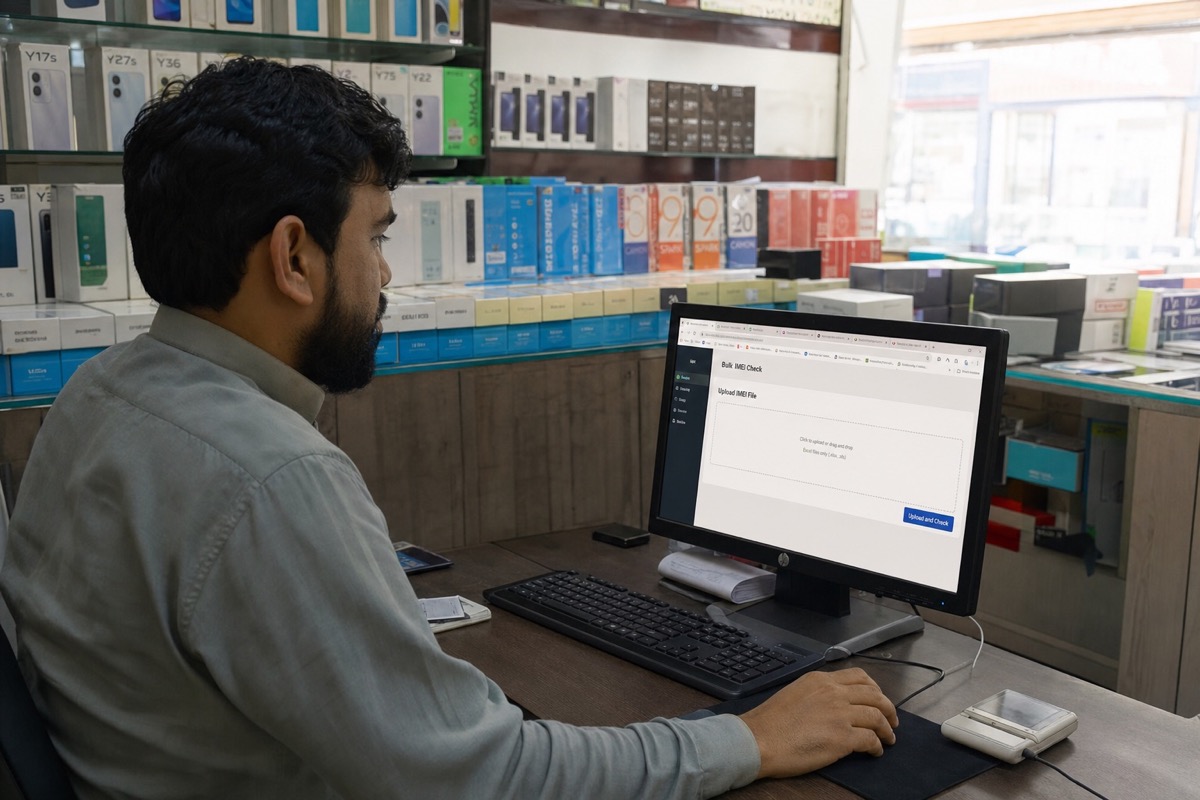
When is a bulk Excel check better than one-by-one lookups?
Apple Check Coverage fits one or a few devices. For 10, 100, or 1,000 units, captchas and manual copying waste time and break row matching. A batch export gives purchasing and warehouse teams one audit file.
See also API vs Excel if you plan an ERP integration.
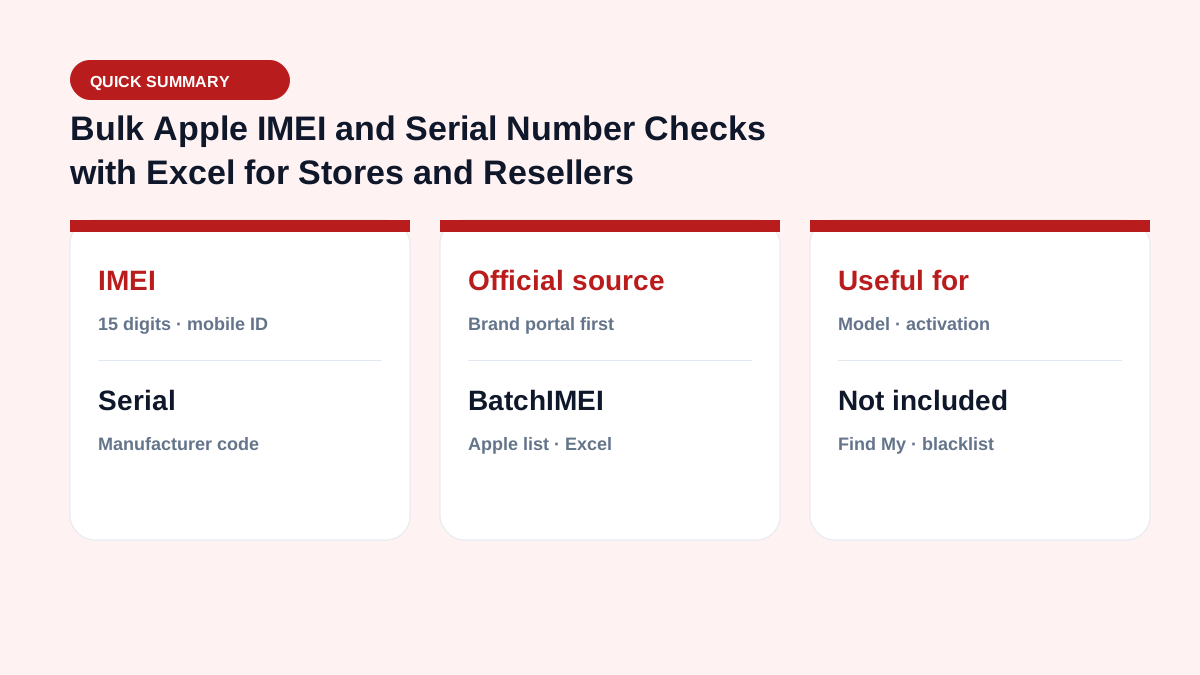
Step 1: Prepare the Excel file correctly
Create .xlsx/.xls/.csv with header imei or serial and one identifier per row. Format the column as Text before pasting — Excel often converts 15-digit IMEIs to scientific notation. Read how to fix Excel IMEI corruption and the inventory template.
Step 2: Upload, run, and monitor progress
Sign in to BatchIMEI, choose the file, and start. Each batch accepts a maximum of 1,000 Apple identifiers. The UI shows completed / pending / failed rows. Only successful checks are billed (currently 500 VND each). New accounts get 5 free checks after email verification.
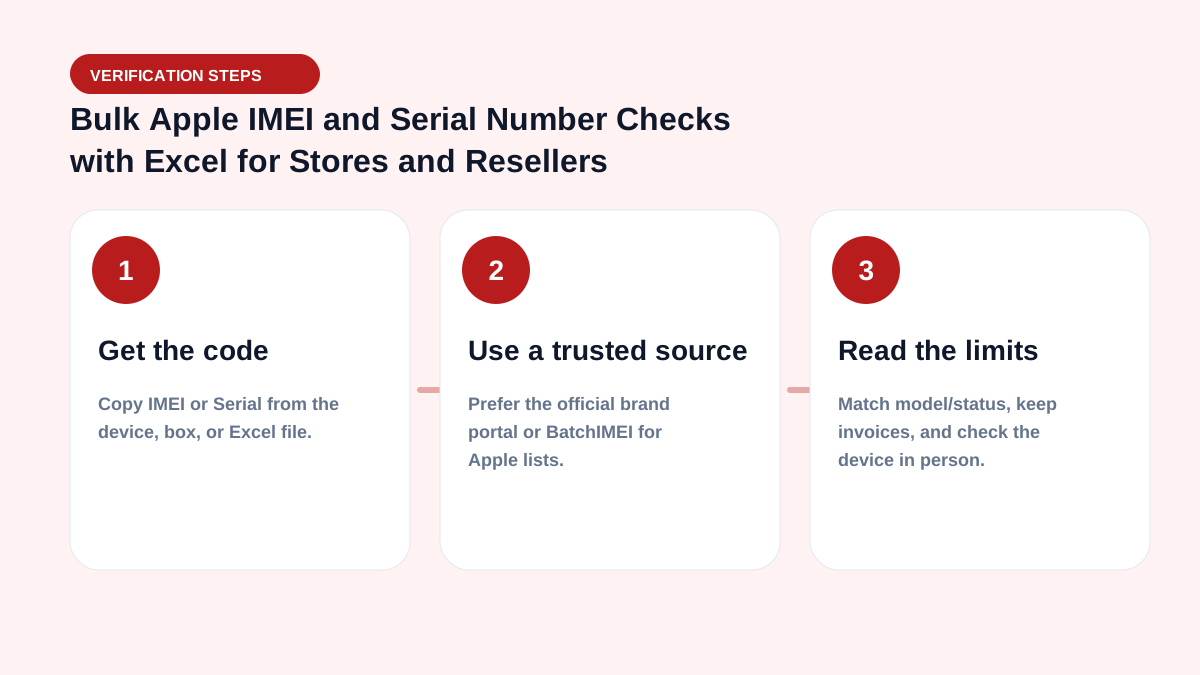
Step 3: Read results and run a QA checklist
The export includes the input code, model, Activated/Not Activated, activation date, remaining warranty days, and check time. Filter Not Activated, warranty < 30 days, model mismatches, and error rows — then verify physical devices before paying or stocking.
- 10 rows: watch progress live.
- 100 rows: one batch, filter in Excel.
- 1,000 rows: respect the per-batch limit; join on your internal Asset ID.
What BatchIMEI returns — and what it does not
| In scope | Out of scope |
|---|---|
| Activation status and date | Find My / Activation Lock / iCloud Lock |
| Recognized model and remaining warranty days | Carrier blacklist or lock |
| Structured Excel for audits | Third-party “full GSX” style dumps |
Also read Coverage does not check iCloud Lock and the business hub.
Frequently asked questions
How many columns does the upload need?
Only one imei or serial column as Text. Keep an internal Asset ID column if you need to map stock.
How many devices can one batch check?
A maximum of 1,000 Apple IMEIs or serial numbers per batch.
Can I mix IMEIs and serial numbers in one file?
Yes. Separate files can make error review easier for large lots.
Does BatchIMEI check iCloud Lock or blacklist?
No. It covers activation/warranty workflows. Check account locks on the device itself.
Is uploaded data kept private?
Uploads are for batch processing. Do not publish real IMEIs in public docs. Review account terms after sign-in.
References
- Apple — Check Your Service and Support Coverage — Apple's official serial-number coverage checker
- Apple Support — Find the serial number, EID, or IMEI — Official instructions for iPhone and iPad
Stop checking Apple identifiers one at a time
BatchIMEI accepts an Excel/CSV file of Apple IMEIs or serial numbers, processes up to 1,000 identifiers per batch, and exports activation and warranty results. The current price is 500 VND per successful check.